
Venn Diagram Template: Free Printable, 2 or 3 Circles
Print a free Venn diagram template below with 2 or 3 circles, lined or blank, or download it as a PDF. Or customize your own: type a title and a label for each circle, and pick writing lines sized for the grade.
Ready-made Venn diagram templates
-
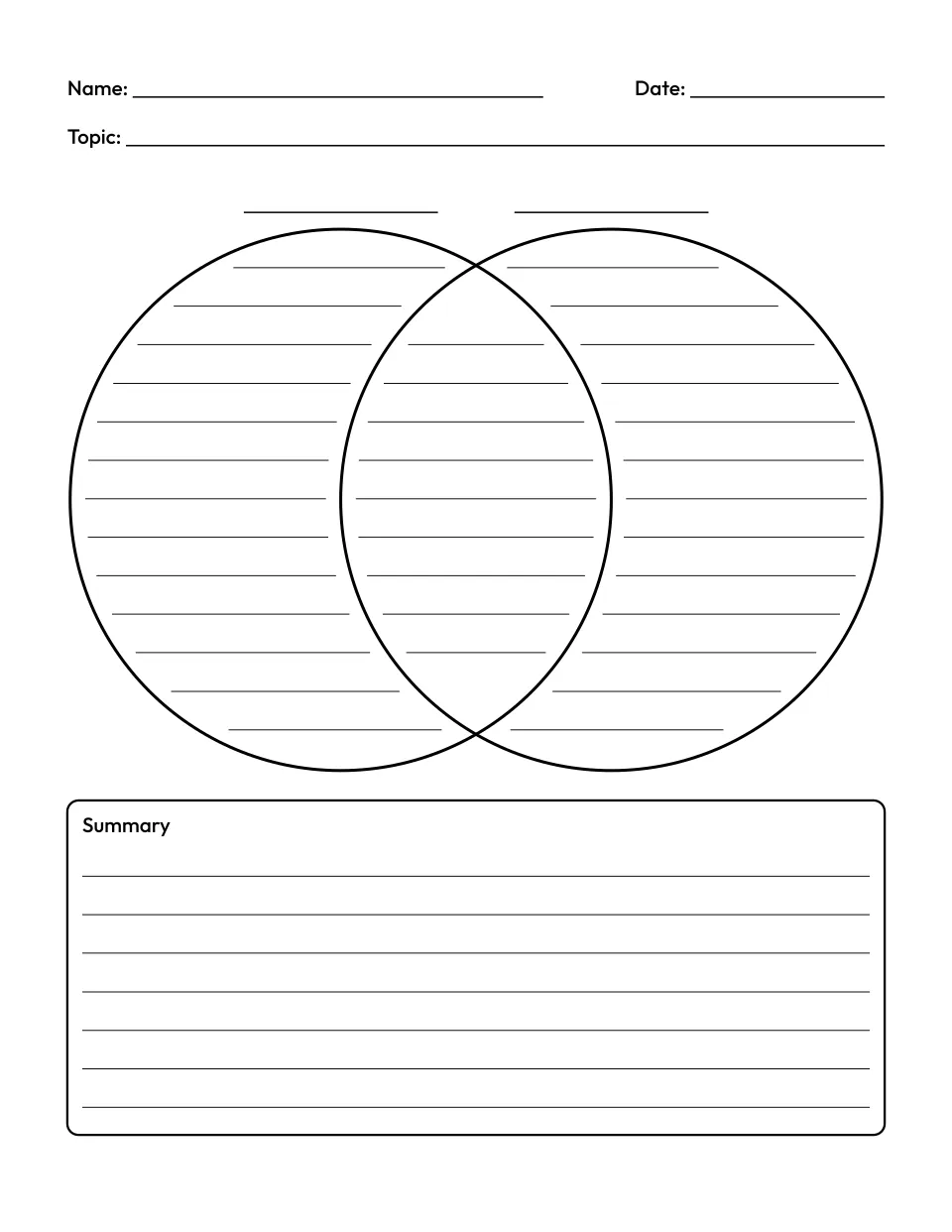
2 circles with lines
Customize the venn diagram template with lines, 2 circles -
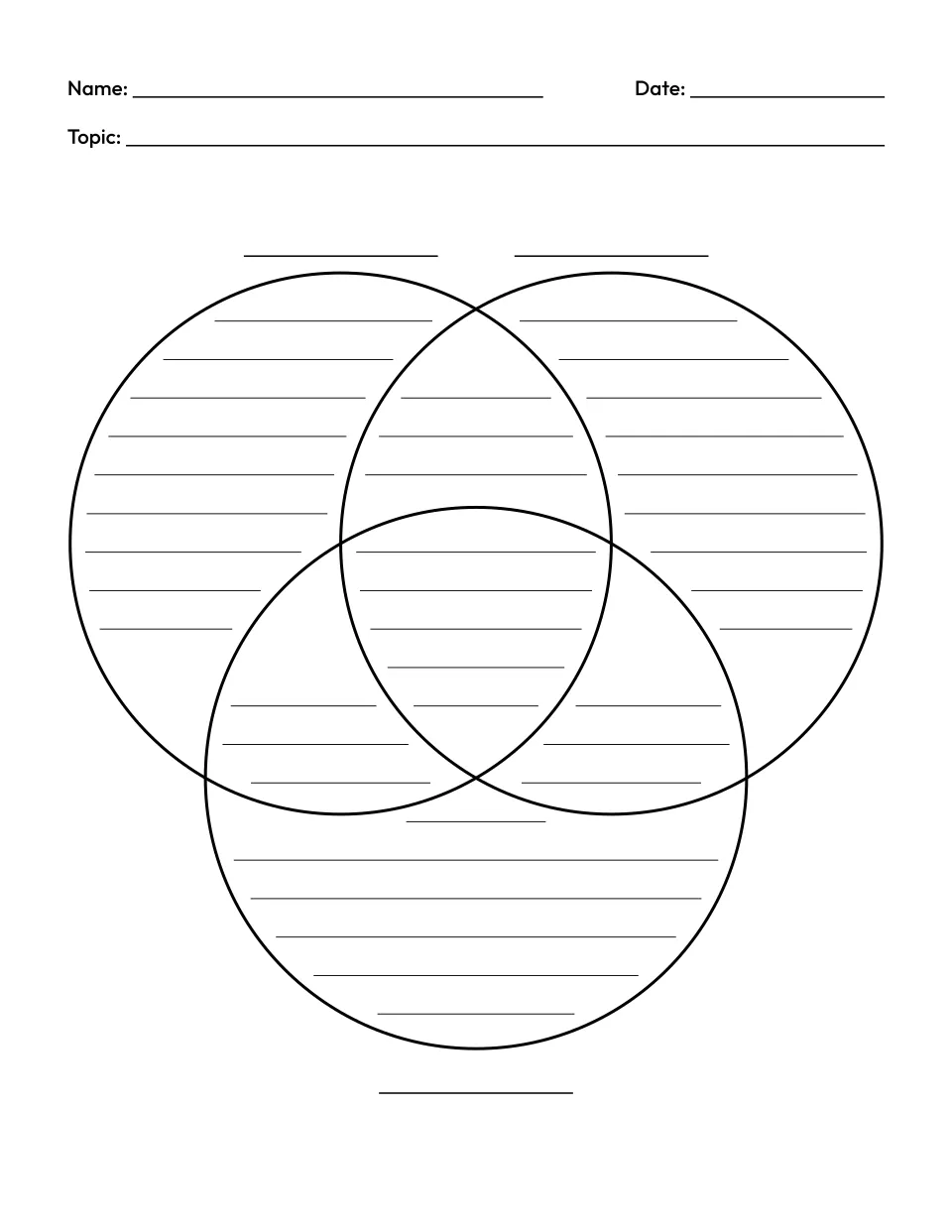
3 circles with lines
Customize the 3 circle Venn diagram template with lines -
Blank 2 circles
Customize the blank Venn diagram template, 2 circles -
Blank 3 circles
Customize the blank 3 circle Venn diagram template -
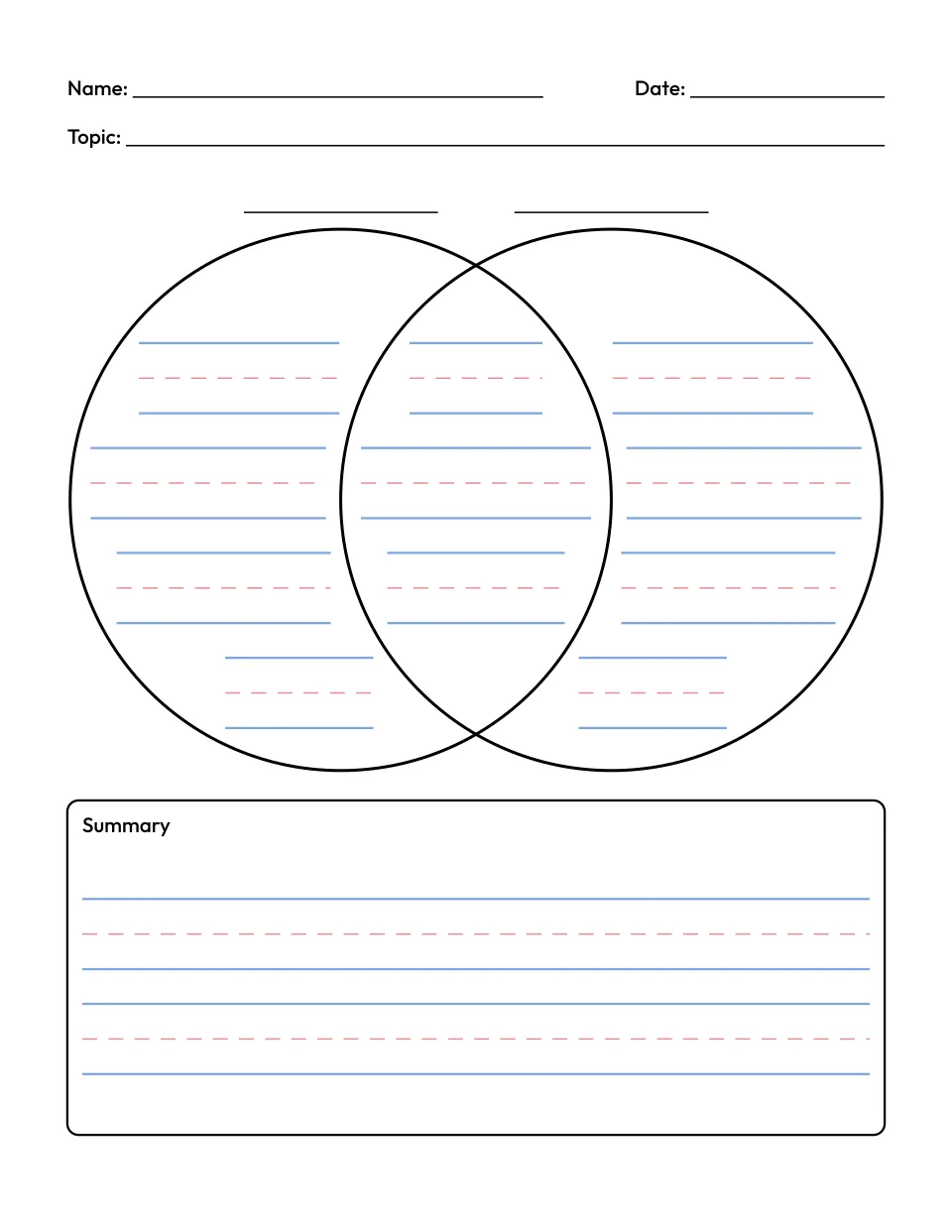
Primary lines, K to 2
Customize the venn diagram template with primary lines for grades K to 2
What is a Venn diagram?
A Venn diagram is a set of overlapping circles that shows how things are alike and different. Each circle stands for one topic. What is true of only one topic goes in its own part, and what is true of both goes where the circles overlap. They are named after John Venn, who described them in 1880.
Customize your own
How to make a Venn diagram worksheet
Press PDF or Print under a template above, or customize your own. Choose 2 or 3 circles, then type a title, or leave it blank for a Topic line. Type a label for each circle, pick the lines and the paper, and add a version for another group. Print the set, or save it as a PDF or PNG.
2 or 3 circle Venn diagram?
A 2 circle Venn diagram has three parts: each topic on its own, and both together in the middle. Each circle passes through the other’s center, so the middle is wide enough to write in. With lines on, a lined Summary box under the circles holds the sentences that compare the two topics.
A 3 circle Venn diagram compares three topics in seven parts, with a center for what all three share. It fills the page, so it has no Summary box.
Choosing line size by grade
Primary lines are handwriting rows with a blue top line and baseline and a red dashed midline, the same rows as our handwriting paper. Wide ruled and college ruled lines are spaced as on our lined paper, college ruled a little closer for smaller handwriting.
| Lines | Grades | 2 circles | 3 circles |
|---|---|---|---|
| Primary lines | K to 2 | 4 rows in each side, 3 in the middle, 2 in the Summary box | 2 rows in each top circle’s own part, 1 in every other part |
| Wide ruled | 3 to 5 | 13 lines in each side, 9 in the middle, 7 in the Summary box | 9 in each top circle’s own part, 6 in the bottom one’s, 3 in each overlap, 5 in the center |
| College ruled | 6 and up | 16 lines in each side, 11 in the middle, 8 in the Summary box | 11 in each top circle’s own part, 7 in the bottom one’s, 4 in each overlap, 6 in the center |
| No lines | Any | Blank circles in the middle of the page | Blank circles |
Every line is fitted inside one part and stays clear of every circle, so it never crosses into the next part. A piece too short to write a word on is left out.
What you get
One portrait page on US Letter or A4, with Name and Date lines, your title or a Topic line, and a label over each circle. A blank label prints a line to write on. There is no answer key, since each diagram holds the child’s own thinking.
Tips for using a Venn diagram
- Start with two topics children know well. Sun and Moon or Rice and Bread keep a first diagram about sorting. In reading, third graders compare two stories by the same author, as Common Core RL.3.9 asks.
- Finish in the Summary box. One sentence on how the topics are alike and one on how they differ make a short compare and contrast paragraph.
- Go blank for children who don’t write yet. On a blank Venn diagram, they can draw or glue pictures into each part.
- Give each group its own topics. Add a version for each table, with its own title and labels, then print the whole set at once.
Venn diagram example: plants and animals
Label the circles Plants and Animals (open it ready to print), then sort facts like these:
- Plants only: make their own food from sunlight, have roots, stay in one place.
- Animals only: move from place to place, eat plants or other animals.
- Both: are alive, need water and air, grow and change.
In the Summary box, a child might write: “Plants and animals are both living things that need water to grow. Plants make their own food, but animals have to find theirs.”
Ready-made printables
For writing up the comparison, print our lined paper in wide or college ruled, or handwriting paper with the same primary rows, and find more on our printable paper page. The same settings make a T-chart template for pros and cons, and a KWL chart template to start a new unit. For other lessons, try the comic strip template or the spelling worksheet generator. More are on our free printable makers page.
Questions about the Venn diagram template
Is this Venn diagram template free?
Yes. The ready-made templates above and any Venn diagram you make here are free, with no sign up and no limit on how many you print. Each sheet is drawn in your browser, so nothing you choose is uploaded or stored. The sheets are free for personal and classroom use, so you can copy them for a whole class or a homeschool group.
How do I make a Venn diagram in Google Docs or Slides?
Google Docs has no Venn diagram template of its own, so make the diagram here. Type your title and labels, pick the lines, then press PNG to save the sheet as an image. In Google Docs or Slides, choose Insert > Image > Upload from computer and pick the file. In Slides, a text box over each part lets a student type answers on screen.
Can I make a 4 circle Venn diagram?
This template prints 2 or 3 circles. Four circles can’t show every way four groups overlap, so a correct four group diagram needs long ovals, with parts too small for a child to write in. For four topics, compare them two at a time on separate versions. Each label can run to 40 characters: up to 24 print at full size, and longer ones shrink to fit.
Can I save or share my Venn diagram?
Yes. Once you change anything, the page address holds the circles, title, labels and lines of every version, so you can bookmark it or send the link to another teacher or parent. Opening the link draws the same diagrams again, since nothing on the sheet is random. For the next lesson, open the link and change only the labels.
Can I print a Venn diagram from a phone, or on A4?
Yes. Tap PDF under any template to save it to your phone or tablet, or Print to send it to a wireless printer. Customize your own works on a phone too, with your versions in a row above the preview and the settings below it. If your printer takes A4 paper, choose A4 under Paper, and the templates above print on A4 as well.