
KWL Chart Template: Free Printable With Lines
Print a free KWL chart template below with What I Know, What I Want to Know and What I Learned columns, lined or blank, or download it as a PDF. Or customize your own with the topic typed in and lines sized for the grade.
Ready-made KWL charts
-
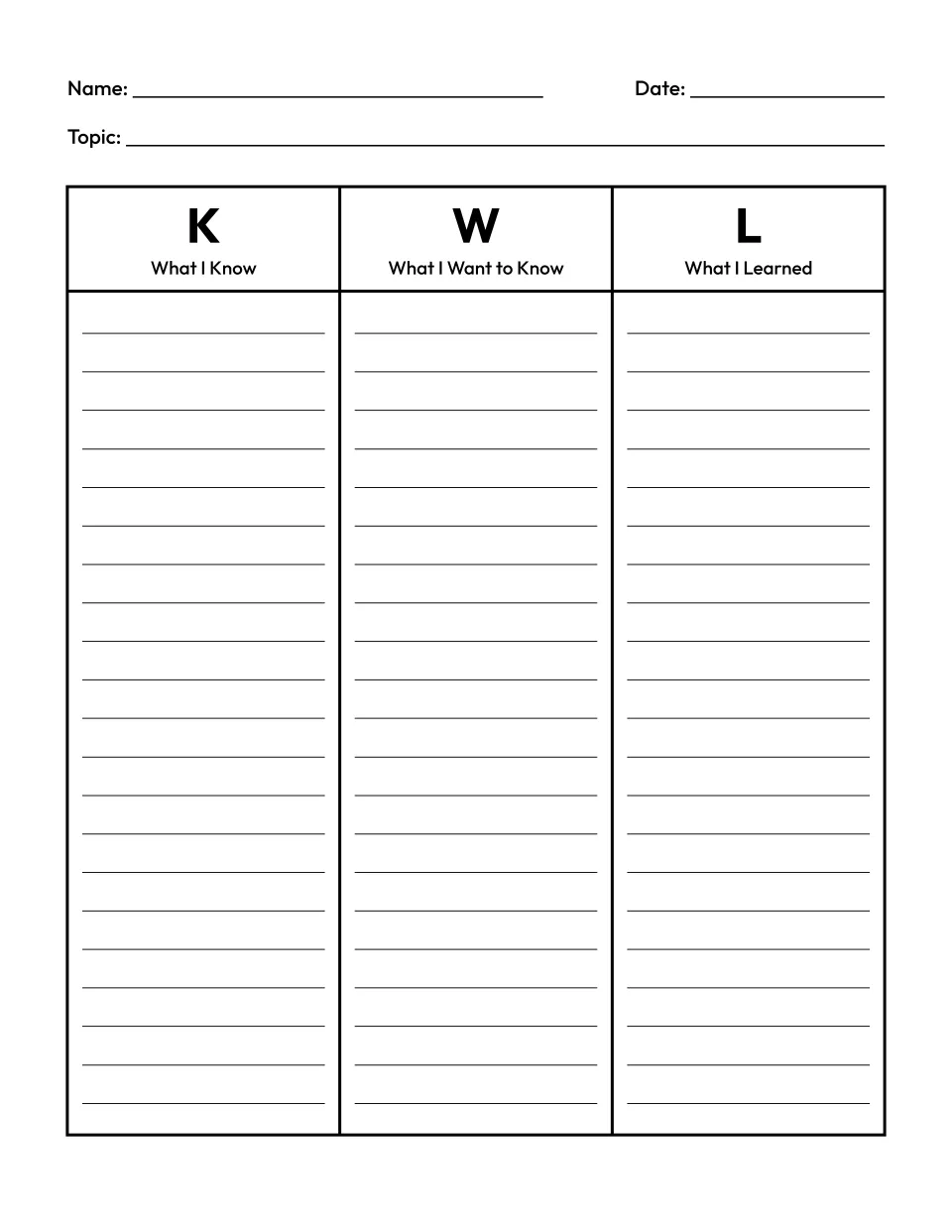
With lines
Customize the KWL chart template with lines -
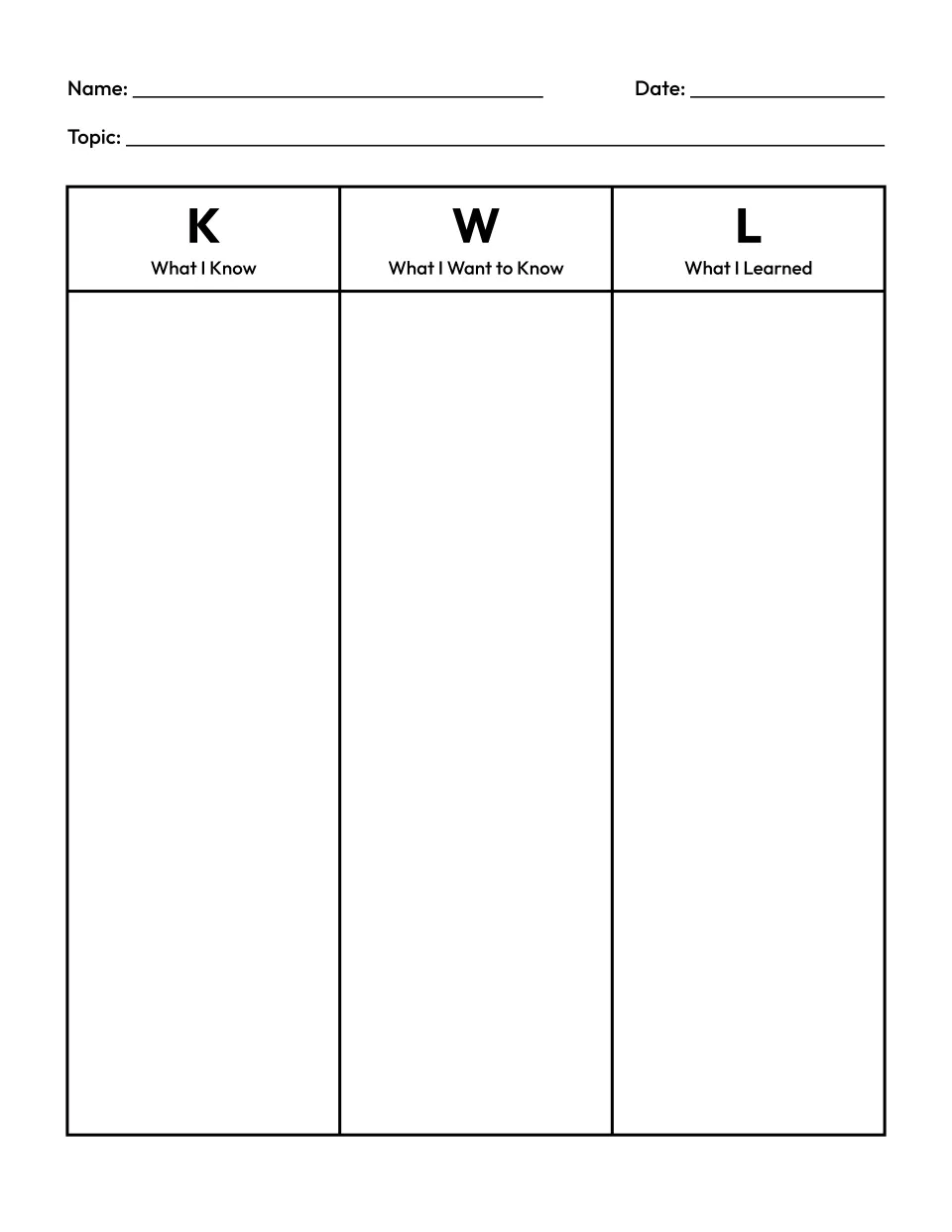
Blank KWL chart
Customize the blank KWL chart template -
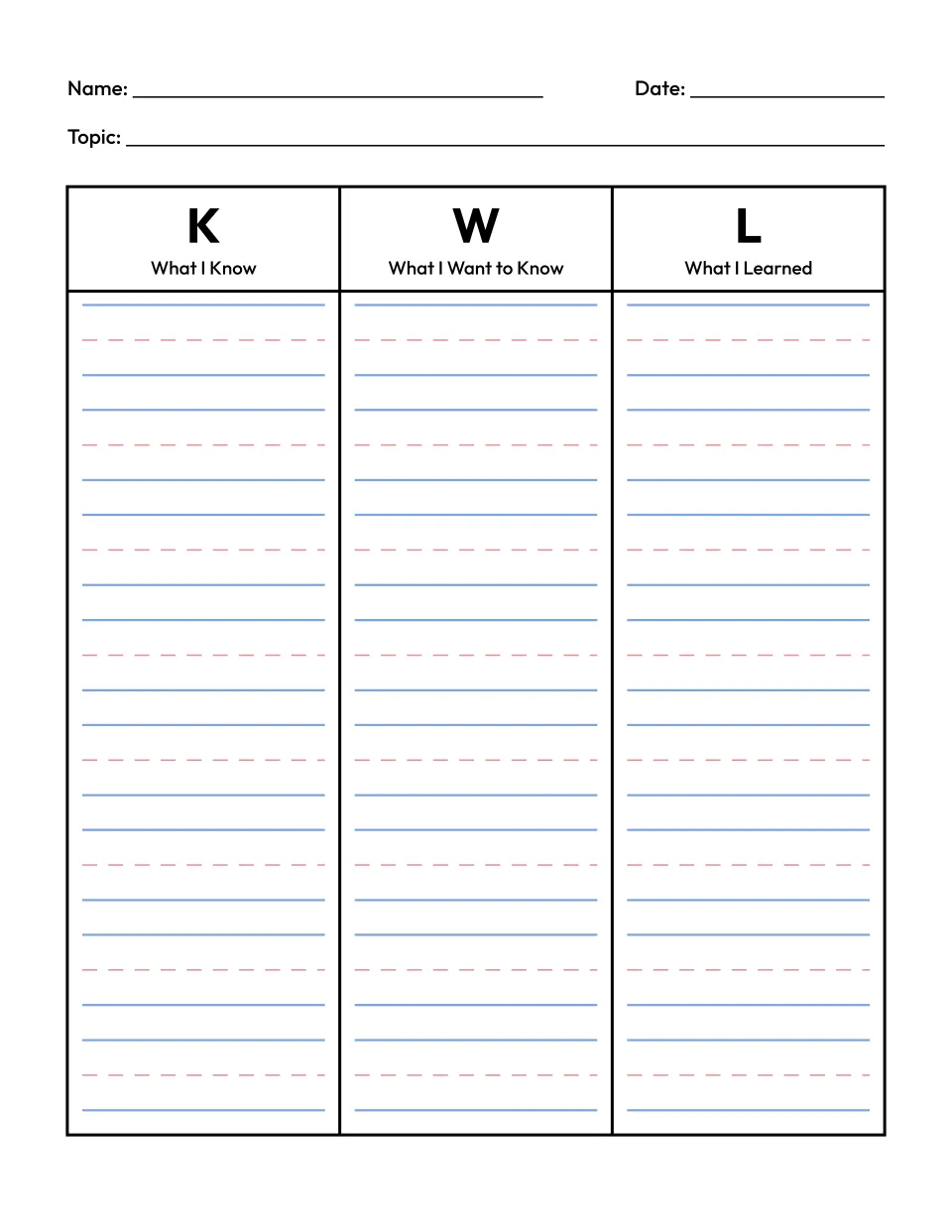
Primary lines, K to 2
Customize the KWL chart template with primary lines for grades K to 2
What is a KWL chart?
A KWL chart is a three column graphic organizer for learning about a topic: K for what I Know, W for what I Want to know, and L for what I Learned. Children fill in K and W before they read or study, and L afterwards. Donna Ogle described it in 1986 as a way to make reading nonfiction active.
Customize your own
How to use a KWL chart
Before the unit, children write what they already know about the topic in the K column, and what they want to find out in the W column, as questions. While they read, watch or study, they look for the answers. Afterwards, they write what they learned in the L column and tick each W question it answers. Questions left over are a good start for more reading.
KWL chart example: honeybees
A KWL chart on honeybees (open it ready to print) might start like this:
| K: What I Know | W: What I Want to Know | L: What I Learned |
|---|---|---|
| Honeybees make honey. | How do bees make honey? | Bees carry nectar from flowers back to the hive and turn it into honey in the wax comb. |
| Bees live in a hive. | Why do bees visit flowers? | They collect nectar and pollen. Pollen carried from flower to flower helps plants make seeds. |
| Bees can sting. | How do bees find flowers? | A bee that finds flowers dances in the hive to show the others which way to fly. |
How to make a KWL chart
Press PDF or Print under a chart above, or customize your own. Type the topic as the title, or leave it blank for a Topic line to write on. Pick the lines and the paper, and add a version for each group or topic. Print the set, or save it as a PDF or PNG.
Choosing line size by grade
The younger the child, the bigger the lines. Primary lines match the rows on our handwriting paper, and wide and college ruled lines match our lined paper.
| Lines | Grades | Each column holds |
|---|---|---|
| Primary lines | K to 2 | 8 rows |
| Wide ruled | 3 to 5 | 21 lines |
| College ruled | 6 and up | 26 lines |
| No lines | Any | Blank, for drawing or sticky notes |
What you get
One portrait page on US Letter or A4 with Name and Date lines at the top. A typed topic prints as a heading, and a blank one prints a Topic line. Below it sits a box of three columns, each headed by a big K, W or L with What I Know, What I Want to Know or What I Learned under it. The headings are fixed, so every chart reads the same, and every column gets the same writing lines. Print it, or save it as a PDF or PNG. There is no answer key: each chart records what the child found out.
Tips for using a KWL chart
- Fill K and W as a class first. Talking through what children know and want to know gives the reading a purpose before it starts.
- Keep mistakes in K. If something in K turns out to be wrong, leave it and write the correct fact in L, so children see what changed.
- Write W as questions. Starting each line with who, what, where, when, why or how gives children something to look for.
- Tick the W questions you answer. Those left over can become the next lesson or a research task.
- Give each group a topic. Add a version for each table, with its own topic and line size, and print them all at once.
Ready-made printables
For notes and a final write-up, print our lined paper, or handwriting paper with the same primary rows, and find more on our printable paper page. Partway through a unit, compare two things on a Venn diagram template, or list pros and cons on a T-chart template. Children can show what they learned on a comic strip template, and the spelling worksheet generator turns the unit’s new words into a practice packet. More are on our free printable makers page.
Questions about the KWL chart template
Is this KWL chart template free?
Yes. The ready-made charts above and any KWL chart you make here are free, with no sign up and no limit on how many you print. Each chart is drawn in your browser, so nothing you choose is uploaded or stored. The charts are free for personal and classroom use, so you can copy them for a whole class or a homeschool group.
What does KWL stand for?
K stands for what I Know, W for what I Want to know, and L for what I Learned. Each column asks a child one question: what do I already know about this topic, what do I want to find out, and what did I find out? Longer versions add columns, such as H for how I will find out. This page prints the three KWL columns, with fixed headings. For headings of your own, use our T-chart template with 3 columns.
What grade is a KWL chart for?
A KWL chart works at any grade from kindergarten up, whenever children start a new topic. Pick the lines by grade: primary lines for K to 2, wide ruled for grades 3 to 5 and college ruled for grade 6 and up. Younger children can fill one chart together while an adult writes, or draw in the columns of a blank chart. Older students can use it to plan a research project and record what they found.
Can I make a KWL chart for each group or topic?
Yes. Under Customize your own, press Add a version for up to six charts, lettered A to F. Each keeps its own topic and line size, so one table can study honeybees on primary lines while another works on wide ruled lines. Print and PDF then offer every version together or only the one on show, and each one prints with its own Name and Date lines.
Can I save or share my KWL chart?
Yes. Once you change anything, the page address holds the topic and lines of every version, so you can bookmark it or send the link to another teacher or parent. Opening the link draws the same charts again, since nothing on the sheet is random. For the next unit, open the link and change only the topic.
Can I print a KWL chart from a phone, or use it in Google Docs?
Yes. Tap PDF under any chart to save it to your phone or tablet, or Print to send it to a wireless printer. If your printer takes A4 paper, choose A4 under Paper, and the charts above print on A4 as well. For Google Docs or Slides, press PNG to save the chart as an image, then choose Insert > Image > Upload from computer.